Talking head videos: choose takes as you record
When you record a spoken explanation, you can choose the takes you want to keep as you go. That means you do not have to leave every comparison until a separate editing session. You still make the decision yourself and review the finished video before publishing.
This approach works for a direct-to-camera explanation, a short lesson, or a screen demonstration. A video that depends on many locations, planned action, or precise music timing needs a different editing process. Here, the main question is whether each section says what the viewer needs to know.
Record in useful sections
Break the explanation into sections that each complete one thought. A section can answer one question or finish one point. Very short fragments may be harder to join if a sentence starts in one take and ends in another with a different rhythm.
Before you record a section again, decide what needs to change. You may have missed a detail, used an unclear example, or taken too long to reach the point. A vague feeling that you could phrase it slightly better does not always require another version.
Leave a short pause between sections. If you are showing something on screen, give the viewer time to see it before moving on. Check that private information is out of view before you start recording.
Decide before the next take
With Fiklo, you can record a camera, screen, or both locally on an Apple silicon Mac running macOS 14 or later. After each attempt, mark whether you want to keep it. You decide which take makes the explanation clearer.
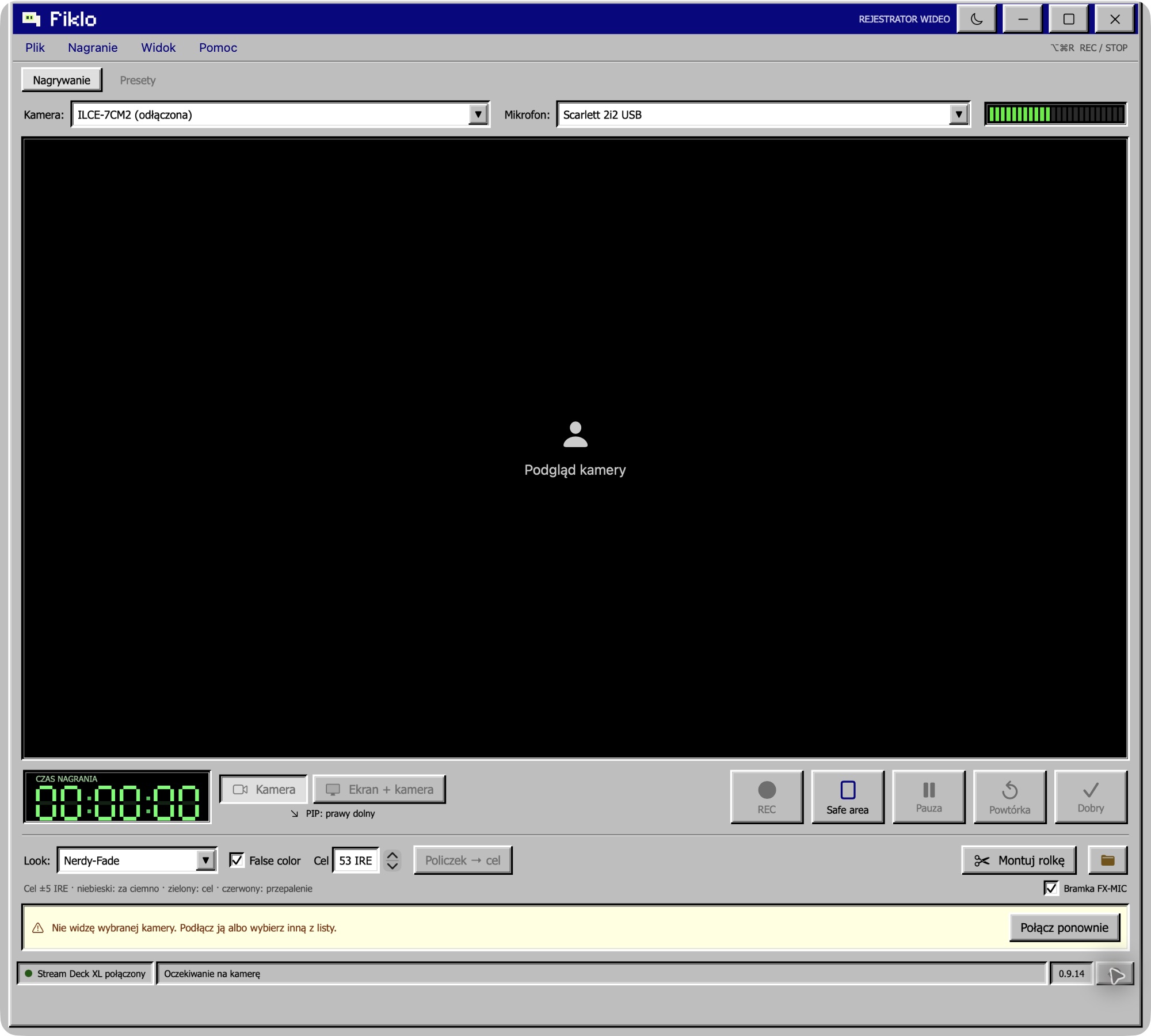
If two takes make the same point, keep the one you prefer. Think about how its opening will follow the previous section. You can pause, make another attempt, and select the take before continuing.
When recording is done, Fiklo assembles the takes you selected on your Mac. You do not need to review every rejected version to tell the app what to use. For a broader routine, see a content creation workflow with fewer decisions.
Check both exports
Fiklo can assemble vertical 9:16 and landscape 16:9 versions in one run. Review each file separately. Check where your face appears, whether the screen content is readable, and whether each cut keeps the explanation clear.
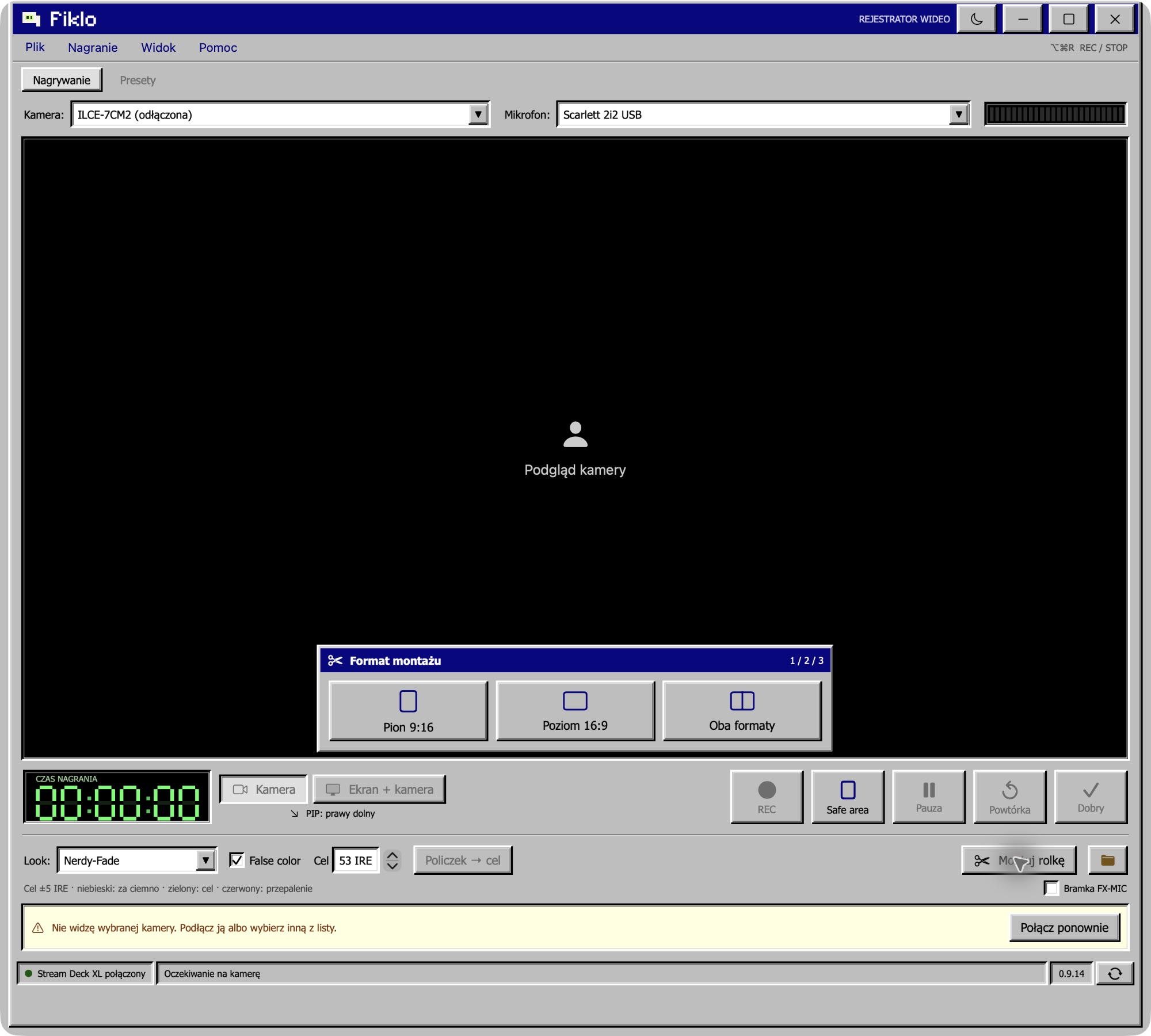
Listen to the start and end of each join. Then watch the full video for a repeated thought or a missing step.
If you are preparing your first videos for a professional profile, read how to build a personal brand with simple video. Keep a final review in your process even when the selected clips are already assembled.
Fiklo is in a closed beta for Apple silicon Macs running macOS 14 or later. Join the beta to request an invitation when a place is available.